Skip to the lessons
Chat on WhatsApp
Growth Informer tutorials

Learn Growth Informer in about 90 minutes

Twelve screen recordings, put in the order that makes sense, with one small task to try after each. Choose your role, watch at your own pace, and pick up later where you stopped.

  • 93minutes of video
  • 12lessons
  • 5modules
Made for you

Choose your path

Tell us what you do and we will highlight your lessons. Nothing is hidden, so you can open any lesson at any time.

Not sure where to begin? Start at lesson 1 and follow the order. Each lesson prepares the next.

Your progress

Tap Mark as done at the end of each lesson to keep track.

  1. 1
  2. 2
  3. 3
  4. 4
  5. 5
  6. 6
  7. 7
  8. 8
  9. 9
  10. 10
  11. 11
  12. 12

Your progress is saved in this browser only. Nothing is sent anywhere.

Twelve lessons in five modules. Watch the video, follow the steps, try the quick win, then take the checkpoint quiz. The videos were recorded in 2024, so a button may look a little different on your screen. The steps and the ideas are the same.

Module 1 of 5

See the big picture

Take a tour of the dashboard, the menu and the point of sale, so you know where everything lives before you start.

2 lessonsAbout 27 min0 of 2 done

Lesson 1 of 12

Growth Informer Overview

11:14 minGood for owners and managers

After watching, you can read your dashboard and you know what every part of Growth Informer is for.
What you will learn

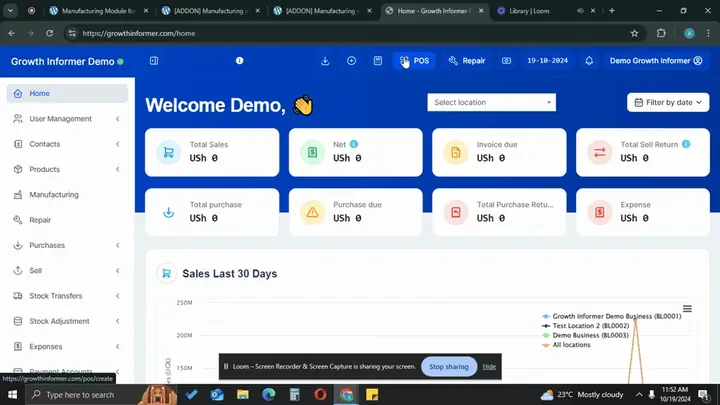
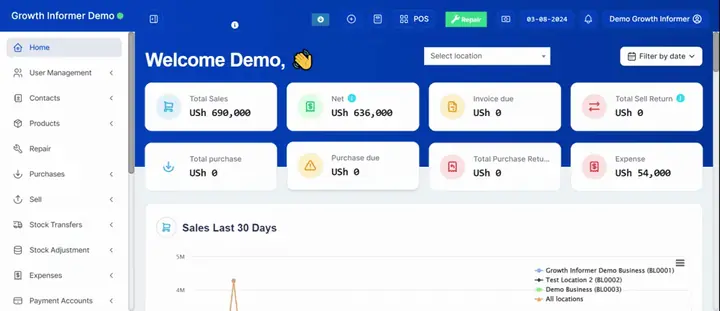
  • How the dashboard sums up a day or a period: total sales, net (sales minus invoices due minus expenses), credit owed to you, purchases, returns and expenses.
  • Where the system warns you: payments due from customers and to suppliers, items at zero, and items about to expire.
  • What else is in the system: POS, roles and users, customer and supplier ledgers, products, repair job sheets, stock, expenses, accounts, reports, kitchen screen, assets, HR and the hotel edition.

Before you start

Nothing. This is the starting lesson. A login helps you follow along, but you can watch it first.

Steps to follow

  1. Open the dashboard and filter by location and by date or period.
  2. Read Total sales, then Net, which is sales minus invoices due minus expenses. That is the cash you should have for the period.
  3. Check Invoice due (what customers owe you on credit), sell returns, total purchases, purchase returns and expenses.
  4. Scroll down to see sales for the last 30 days by location and sales for your financial year, and set the month your financial year starts.
  5. Check Sales payments due and Purchase payments due. Filter by location and add a payment from there.
  6. Watch the stock alerts for items at zero and items about to expire. You choose how many days of warning you want.
  7. Open the point of sale, then roles and users. Decide what each person can see, add, edit or delete. Each user needs an email so their password can be recovered.
  8. Open a customer or supplier ledger, which you can print or save as a PDF to share when you ask for payment.

Try it now: your quick win

Open your dashboard, choose today and your location, and write down your Total sales and your Net figure.
Lesson 2 of 12

Understanding Your Business Dashboard

15:48 minGood for owners and managers

After watching, you can read your daily dashboard, know where each part of the system lives, and see how the register keeps your cash in check.

What you will learn

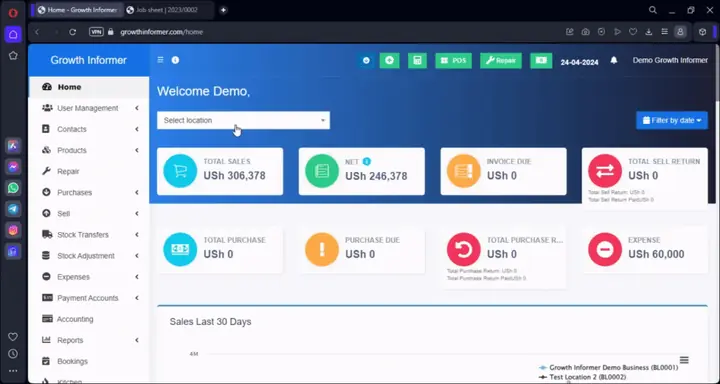
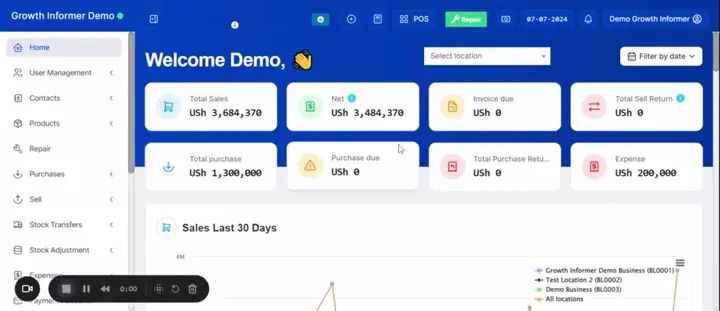
  • What the dashboard shows: total sales, net, invoices due, purchases, expenses, payments due and low stock, and how to filter by location and date.
  • What sits in the menu: settings, users and roles, customers and suppliers with ledgers, purchases, stock transfers and adjustments, expenses, payment accounts and reports.
  • How the Point of Sale opens and closes a register, and how the owner checks the cash afterwards.

Before you start

Nothing. The video uses a demo account, so you can watch it before you set anything up.

Steps to follow

  1. Open the dashboard from the home screen. Pick your location and a date: yesterday, the last seven days, or a period you choose.
  2. Read the top boxes: total sales, net, invoices due, sales returns, purchases, purchases due and expenses. Net is total sales minus invoices due (sales on credit) minus expenses.
  3. Scroll down to see daily sales by location for the last 30 days, then the current financial year. Set your financial year to start in the month your business year starts, for example January to December.
  4. Check the tables for sales payments due from customers who bought on credit, purchase payments due to suppliers, and products running low on stock.
  5. Hover over Today's profit to see a small profit and loss for the day: sales, expenses, gross profit and net profit.
  6. Walk down the left menu: business settings, users and roles, contacts with ledgers, products, purchases, stock transfers, stock adjustments, expenses, payment accounts and reports. In users and roles, tick what each person is allowed to do.
  7. Open the Point of Sale. Enter the cash in the drawer to open the register. Find a product by scanning its barcode or typing two letters, then take payment by cash, card or multiple pay, for example mobile money or bank transfer.
  8. Open Register details to see cash in hand, payments and sales. Close the register when the shift ends. As the owner, check the Register report in Reports to manage cash.

Try it now: your quick win

Open your dashboard, choose today's date, and write down three numbers: total sales, expenses and net. Then hover over Today's profit and compare.

Checkpoint

Checkpoint quiz: See the big picture

Three quick questions on this module. Nothing is sent anywhere.

Question 1 of 3On the dashboard, how is your Net worked out?

Question 2 of 3You want to chase customers who bought on credit and are now late. Which part of the dashboard do you open?

Question 3 of 3At the start of your shift you open the register in the point of sale. What do you enter?

Module 2 of 5

Set up your products and stock

Add your products with barcode, unit and tax, put in your opening stock, and fix it when your count is different. Bars and pharmacies also learn to sell by the shot or by the tablet.

3 lessonsAbout 20 min0 of 3 done

Lesson 3 of 12

Adding Products

9:46 minGood for owners, cashiers, managers and shopkeepers

After watching, you can add a product with its barcode, unit, tax and opening stock, sell it in the Point of Sale, and bring in many products at once from a file.

What you will learn

  • Which details to fill when you add one product: name, barcode, unit, brand, category and the locations where you sell it.
  • How to switch on stock tracking, set a low stock warning, and say whether your selling price already includes tax.
  • How to save with opening stock, sell the new product in the Point of Sale, and import many products from a file.

Before you start

Nothing from other lessons. You only need to be signed in on the home screen and to have at least one business location in your account.

Steps to follow

  1. From the home screen, click Products on the left, then Add product. This adds one product at a time. Type the product name. If it has a barcode, scan it or type the number by hand. You can ignore the barcode type.
  2. Choose the unit, for example pieces. If your unit is missing, such as litres or bottles, add it. Then choose the brand, the category, and every location where you sell this product.
  3. Tick Manage stock if you count this item, and set the quantity at which the system should warn you that stock is low. For a service, leave Manage stock off.
  4. Choose the tax for the item and say whether your selling price includes it. Inclusive means no extra tax is added when you sell. Exclusive means the system adds the tax on top. The system adds the tax and your margin to show a selling price. Round it to an easy amount to make change simple.
  5. Optional: add a product image by choosing a file from your computer, so it shows in the Point of Sale. Then click Save and add opening stock and enter how many you have at each location. The system counts the stock down as you sell.
  6. Open the Point of Sale. Enter the cash in the drawer to open the register, choose your new product, and click Cash to sell it.
  7. Have many products? Click Import products, download the file, and fill in the columns. Required columns must be filled and optional ones can be left out. Then choose the file and submit.
  8. For a product already in your list, click the product and choose Add or edit opening stock to add or remove stock.

Try it now: your quick win

Add one product you really sell, with its barcode if it has one. Save it with opening stock, then find it in the Point of Sale.

Lesson 4 of 12

Add stock and make stock adjustments

5:16 minGood for owners, managers and shopkeepers

After this lesson you can correct a product's opening stock, remove missing stock with a stock adjustment, and set up sizes, units, categories, brands and warranties for your products.

What you will learn

  • How to add or edit the opening stock of a product when your count is different from what the system shows.
  • How to remove lost or missing items with a stock adjustment, and why you must find the reason first.
  • How variations for sizes, units, categories, brands and warranties are set up, and where to see a product's stock history.

Before you start

Your products must already be in the system. The lesson Adding Products ends on add or edit opening stock, which is where this lesson begins.

Steps to follow

  1. Open add or edit opening stock for a product, change the number to what you counted, for example 45 where the system shows 40, and save. The total goes up by the difference.
  2. To remove stock, add a stock adjustment and choose the adjustment type. The screen explains each type.
  3. Choose the location you are removing stock from, type two or three letters to find the product and enter how many to remove. You can add several products.
  4. If you recover money for the shortage, for example from an employee, enter the amount recovered. If you charge no one, leave it empty and it counts as a loss to the business. Then save.
  5. Check the adjustment in your list of stock adjustments. Always find out why stock went missing first: sales you did not know about, lost items, or sales not entered in the system.
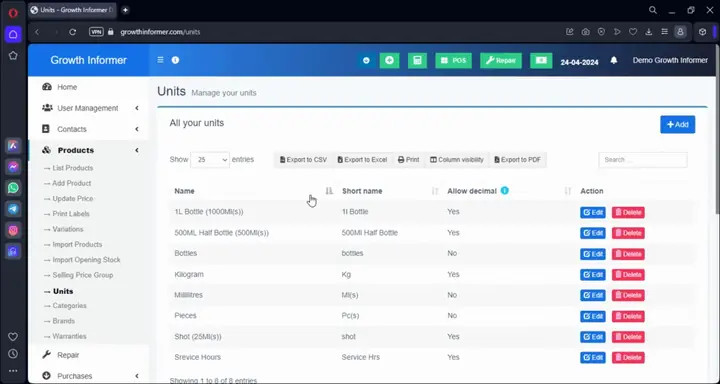
  6. Add variations for products that come in sizes, such as small, medium and large, and add units such as pieces, choosing whether decimals are allowed.
  7. Add categories with sub categories, brands, and warranty types with a length in days or months.
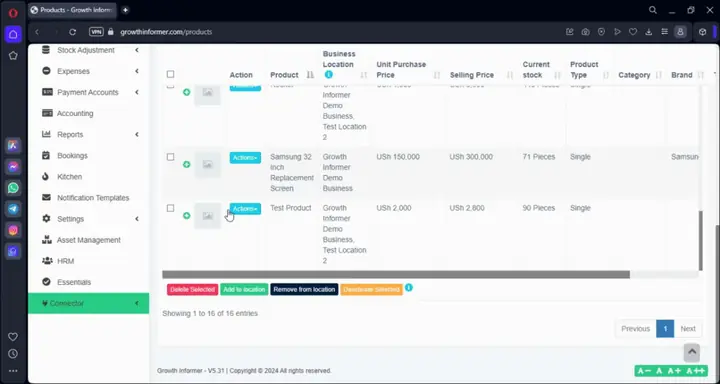
  8. In the list of products, open Actions to print labels, duplicate a product or see the product stock history.

Try it now: your quick win

Count one product on your shelf and compare it with the stock the system shows. If you counted more, fix it with edit opening stock. If you counted less, make a stock adjustment and note the reason.

Lesson 5 of 12

Set different prices for bar shots and pharmacy tablets

5:08 minGood for owners, managers, bars and pharmacies

After this lesson you can set up the smallest unit you sell, such as a tablet or a millilitre, build shots, strips and boxes from it, and know where to set a different price for each.

What you will learn

  • Why you start with your best unit, the smallest unit you sell, and build every bigger unit as a multiple of it.
  • How to add units such as a shot that equals 25 millilitres or a strip that equals 10 tablets.
  • How to set the default price per millilitre or per tablet, and how selling price groups let a shot, strip or box have its own price.

Before you start

Know how to add a product, because you choose the unit and the default price while adding one. The lesson before this one, Add stock and make stock adjustments, introduces simple units such as pieces.

Steps to follow

  1. Decide your best unit. It is the smallest unit you sell, such as millilitres for a bar or tablets for a pharmacy.
  2. Add that best unit with a name and a short name, and set whether it allows decimals.
  3. Add the next unit up, such as a strip or a shot, with its own name and short name.
  4. Say what it equals: choose the best unit, enter the number, for example one strip equals 10 tablets or one shot equals 25 millilitres, and save.
  5. Repeat for other pack sizes, for example a strip of 12 tablets or a strip of 13 tablets.
  6. When you add the product, make its unit the best unit and enter the default selling price per millilitre or per tablet.
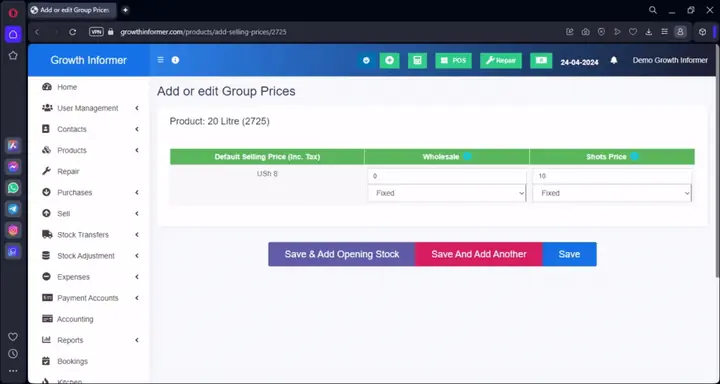
  7. For a shot, strip or box that needs its own price, open the selling price groups and add a price group for it.
  8. In your list of products, open Actions for the product and choose edit price groups.

Try it now: your quick win

Pick one product you sell in smaller pieces. Add its smallest unit, a millilitre or a tablet, then add one bigger unit such as a shot or a strip and set what it equals.

Checkpoint

Checkpoint quiz: Set up your products and stock

Three quick questions on this module. Nothing is sent anywhere.

Question 1 of 3You sell a service such as a car wash and you do not count it. What do you do with Manage stock?

Question 2 of 3Your count on the shelf is lower than the system shows. What should you do before you make a stock adjustment?

Question 3 of 3For bars and pharmacies: what is your best unit?

Module 3 of 5

Start selling

Ring up sales in the point of sale, open and close your register, add customers and suppliers, and record expenses. Then see the everyday routine come together in three minutes.

3 lessonsAbout 14 min0 of 3 done

Lesson 6 of 12

Making sales in the POS

5:48 minGood for owners, cashiers, managers, shopkeepers and bars

After this lesson you can ring up a sale in the point of sale, take payment in one or more ways, and open and close your register at the start and end of your shift.

What you will learn

  • How to add products to a sale, switch the selling price group and take payment by cash, card, credit or several methods at once.
  • How to open your register with the cash in the drawer and close it at the end of the shift to see what was sold and the cash you should have in hand.
  • How to save a draft, add a discount, tax or shipping, and collect payment later on a credit sale.

Before you start

Have at least one product added. If you sell by the shot or by the tablet, watch Set different prices for bar shots and pharmacy tablets first, because this video carries on from it. A customer is only needed for credit sales. Adding customers comes in the next lesson.

Steps to follow

  1. Open the point of sale, add a product and, if you sell at more than one price, switch the selling price group to the one you need.
  2. If you run a kitchen, select the table for the order. You add your tables under settings.
  3. Open your register at the start of the day and enter the cash in the drawer.
  4. If a customer steps away, save the sale as a draft. You will find it again under recent transactions.
  5. For a credit sale, add a customer first, because the POS will not let you sell on credit without one.
  6. Choose how the customer pays: cash, card, credit, or multiple pay when they use different methods, for example part in cash and the balance on mobile money. Add a discount (fixed or percentage), order tax or a shipping fee if the sale needs it, then finalize and print the receipt.
  7. At the end of your shift, close the register and check the products sold and the cash in hand it shows.
  8. Open All Sales, filter for sales that are due and add a full or partial payment. From the same list you can also make a sale return or print an invoice.

Try it now: your quick win

Open your register with the cash in the drawer, make one cash sale and print the receipt, then close the register and read the cash in hand it shows.

Lesson 7 of 12

Adding Customers, Suppliers and Expenses

5:19 minGood for owners, managers and cashiers

After this lesson you can add customers and suppliers, check a customer's ledger, and record a business expense.

What you will learn

  • How to add a customer or supplier with just a name and a mobile number, plus an optional opening balance, credit limit and pay term.
  • How to read a customer ledger: account summary, advance balance, what they bought, and how their balance ages over 30 and 60 days.
  • How to record an expense with a category, and how to let staff add expenses from the POS.

Before you start

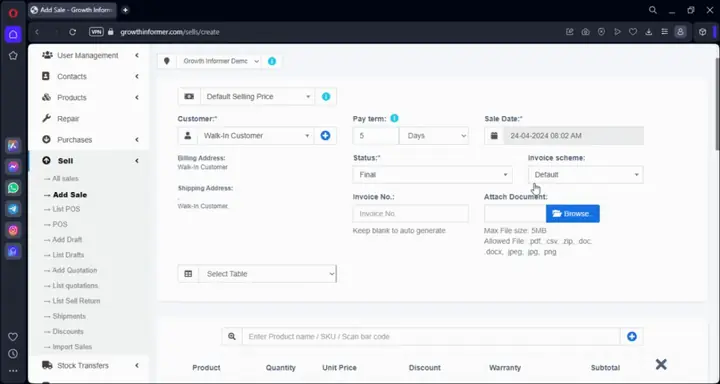
Watch Making sales in the POS first. This video opens in the middle of the Add Sale form that video ends on, so the first 45 seconds make little sense without it. Adding customers, suppliers and expenses needs no other setup.

Steps to follow

  1. Open Contacts and add a customer. Choose individual or business.
  2. Enter the name and the mobile number. These are the only required details.
  3. Add an opening balance, credit limit or pay term if you need them, then save.
  4. In the customer list, use Pay to record a deposit. It shows as their advance balance.
  5. Open the customer's ledger to see the account summary, what they bought, and how old their balance is.
  6. Add a supplier the same way. From a supplier you can also pay a deposit, check purchases and stock reports, and view the ledger.
  7. Open Expenses and click add expense. Choose the location and the expense category. Add new categories such as transport, maintenance, rent or food.
  8. Enter the date, the total amount and a note. Mark it recurring if it repeats. Choose the payment account and save.

Try it now: your quick win

Add one regular customer with only a name and a mobile number, then open their ledger.

Lesson 8 of 12

The Selling Process: Sales and Expenses

3:14 minGood for cashiers, shopkeepers and owners

After watching, you can record a sale and an expense from start to finish.

What you will learn

  • How to find a product in the POS by typing its first letters, then change the price and quantity.
  • How to attach a customer, and how the Cash button finishes the sale and offers a receipt.
  • How to record an expense with a category, an amount, a note and the payment.

Before you start

A login to the system and your products already added, because the POS searches your product list. For the expense part, an expense category and a cash account such as the shop cash account must already exist.

Steps to follow

  1. Click POS in the menu.
  2. Search for the product, or type its first two letters, and pick it from the list.
  3. Change the price if you sold it at a different price, then set the quantity.
  4. Add more products the same way if the customer buys more than one thing.
  5. For a customer already in the system, type the first two letters and pick the name. To add a new customer, add them on the same screen.
  6. Click Cash to finish the sale. If you do not want a printed receipt, cancel the print option.
  7. To record an expense, go to add expense, choose a category, enter the amount and write a note such as transport.
  8. If you have already paid it, enter the payment amount, choose cash as the method, choose the account (the video uses the shop cash account) and save.

Try it now: your quick win

Record today's first real sale in the POS, then record one real expense such as transport, with a category, an amount and a note.

Checkpoint

Checkpoint quiz: Start selling

Three quick questions on this module. Nothing is sent anywhere.

Question 1 of 3A customer will pay you next week. What must you do before the POS lets you sell on credit?

Question 2 of 3When you add a new customer, which details are required?

Question 3 of 3You paid for transport out of the shop cash. How do you record it?

Module 4 of 5

Run your back office

Record purchases from suppliers and take a quick tour of repair job sheets, team tools and reports. Finish with the end of day check that shows whether your cash and stock add up.

3 lessonsAbout 15 min0 of 3 done

Lesson 9 of 12

Adding Purchases and Repair Job Sheets

5:27 minGood for owners, managers and repair shops

After this lesson you can record a purchase from a supplier, and you know how a repair job sheet is set up and filled in.

What you will learn

  • How to record a purchase: choose the supplier and location, search products by typing a few letters, enter units, price, discount and shipping, then add the payment and save.
  • How an advance paid to a supplier shows up, and how to choose between the advance balance and cash.
  • How the repair module works: set your statuses, devices and defaults once, then add a job sheet for each device and print it for the customer.

Before you start

You need at least one product and one supplier already in the system. Watch Adding Customers, Suppliers and Expenses first: its closing words lead straight into this video. The repair half only matters if you run a repair business.

Steps to follow

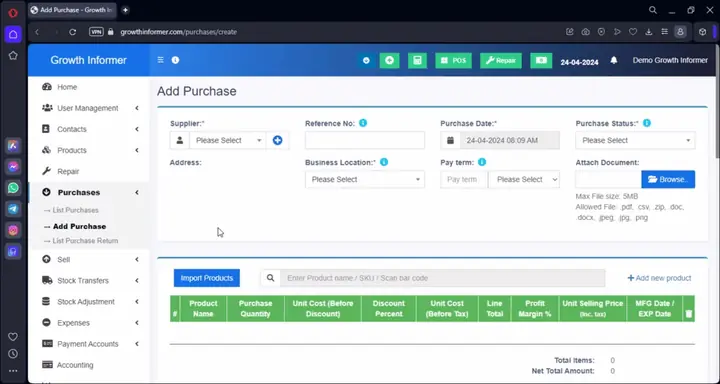
  1. Open Add Purchase. Choose the supplier and add a reference number if there is one.
  2. Select the business location first. You cannot search for products until you do.
  3. Set the purchase status, for example received or pending. Attach a document if you have one.
  4. Type three letters of a product name, pick it, and add as many products as you need.
  5. Enter the units. Change the price if needed, and add a discount, notes, shipping details or an extra cost such as transport.
  6. Add the payment. If you paid this supplier in advance, choose whether to use the advance balance or cash. Pick the account you pay from and save. Your purchase appears in the list of purchases.
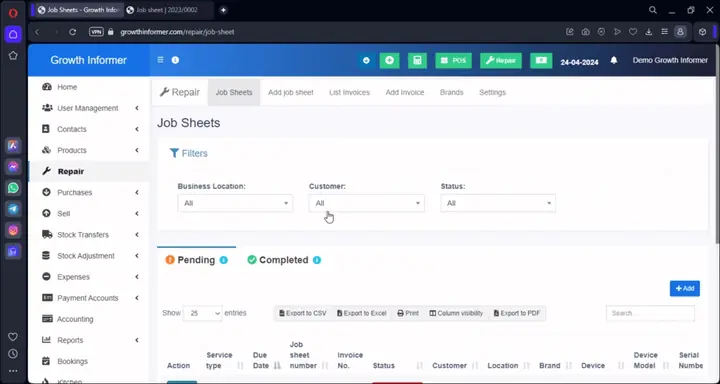
  7. If you run repairs, open the repair settings first. Add your statuses, devices and models, and set your default checklist and terms and conditions.
  8. Add a job sheet with the customer, device, model, problem reported and due date, then save and print it for the customer.

Try it now: your quick win

Record one small purchase from a supplier you already buy from: choose the location, add one product, enter the units and price, add the payment, save, and find it in the list of purchases.

Lesson 10 of 12

Overview of Team Management (HRM) and Reports

4:39 minGood for owners and managers

After this lesson you know where your team tools live and how to read your register, profit and loss, and stock reports.

What you will learn

  • Where to assign to-dos, set sales targets, and manage roles, departments, holidays, attendance and leave for your team.
  • How the register report shows how each employee has been selling, and which registers are open.
  • How to read the profit and loss report (gross profit and net profit) and the stock report.

Before you start

Watch Adding Purchases and Repair Job Sheets first, because this video carries on straight from it. Have some products, stock and a few recorded sales in your account so the reports have something to show.

Steps to follow

  1. Open Essentials, the human resource management area of the system.
  2. Look at what it holds: to-dos you can assign to people, documents, memos, reminders, messages and a knowledge base.
  3. Open its settings and find where you set sales targets and assign a target to each person.
  4. Add designations such as CEO or head of marketing, then departments and holidays.
  5. Open Reports, then the register report, to see day by day how each employee sold and which registers are open.
  6. Open the profit and loss report. Filter by location and date, then read the gross profit and the net profit. Net profit takes away expenses and payroll.
  7. Open the stock report, filter by location, and read the closing stock and the potential profit. Then open one product's stock history.

Try it now: your quick win

Open this month's profit and loss report, filter it to your location, and look at profit by product to see which item earns you the most.

Lesson 11 of 12

Managing Your Business Day to Day

5:14 minGood for owners and managers

After watching, you can do a simple end of day check that shows whether your sales, cash and stock add up, and read the day's profit.

What you will learn

  • How to read the overview for one day: total sales, purchases, what is due today, and your net.
  • How to check that your cash adds up using the payment accounts, the account book and the register report.
  • How to check that stock matches the shop, then read the day's profit and loss.

Before you start

Products and stock added, and some sales made in the Point of Sale with the register opened and closed. Without sales, purchases and cash, there is nothing to check yet.

Steps to follow

  1. Open the overview. Choose your location and the date. By default it shows today.
  2. Read total sales first. Then check whether you made purchases, whether any purchases are due, and what your net is. The cash you made for the day should match your net.
  3. Look at the sales payments due today from customers, the purchase payments due today to suppliers, and the coloured product list that shows what you need to add.
  4. Go to Payment accounts and open the list of accounts. Look at the cash account. Then open the Account book, filter to today, and see what changed the balance. Ask yourself whether the money adds up.
  5. Check your stock. Click All products to see the current stock, then compare it with what is in the shop. If it does not match, ask why: was a sale not entered, or are items missing?
  6. Open Reports and choose the Register report for the date. Read each person's cash in hand, total payments, total sales and the products they sold, split across cash, bank and mobile money.
  7. Once cash and stock add up, open the Profit and loss report and choose today. Read the gross profit and the net profit. Net profit is lower because of the day's expenses.
  8. Repeat the check daily, weekly or monthly, whichever fits how you run your business.

Try it now: your quick win

At closing time today, compare your net on the overview with the cash in your cash account. Write down any difference and ask why.

Checkpoint

Checkpoint quiz: Run your back office

Three quick questions on this module. Nothing is sent anywhere.

Question 1 of 3When you add a purchase, what must you choose before you can search for products?

Question 2 of 3In the profit and loss report, what is the difference between gross profit and net profit?

Question 3 of 3Your overview shows your net for the day. Where do you check that the cash is really there?

Module 5 of 5

The hotel edition

An overview of how to set up rooms, prices, extras and bookings on the calendar. This one is for hotels and guest houses, so everyone else can skip it.

1 lessonAbout 16 min0 of 1 done

Lesson 12 of 12

Hotel Management System Overview

16:01 minGood for hotels and guest houses, owners and managers

After watching, you know the order to set up a hotel or guest house in Growth Informer: rooms and prices first, then extras, then bookings on the calendar.

What you will learn

  • How the hotel edition is set up: rooms, prices for each night, amenities, coupons, extras and a booking prefix.
  • How to add a booking on the calendar, and how its status moves from pending to confirmed once payment is made.
  • How the rest of the system supports a hotel: the point of sale, the kitchen screen, roles, the activity log and profit reports.

Before you start

Watch the Growth Informer Overview first so the dashboard and the point of sale are familiar. Know your room list and your price for each night. If your hotel also runs a bar or restaurant, add your products and stock first, because the video says that side needs products and stock.

Steps to follow

  1. Start on the dashboard and check today's sales, the net figure, payments due and the stock alerts.
  2. Open the hotel section and add your rooms, numbered the way your hotel numbers them.
  3. Set room prices: a different price for each day of the week, a special price by number of guests, a default price for every night, or seasonal prices.
  4. In settings, create a booking prefix that fits how you group your bookings.
  5. Add amenities for your rooms and coupons that give a discount on a booking. Mark a room as unavailable while it is under maintenance.
  6. Add extras such as airport pickup, breakfast and lunch, which you can attach to any booking.
  7. Open the calendar and add a booking with the arrival and departure dates, the room, adults and children, and any extras. Check the total, and add a coupon if you made one.
  8. Save it. The booking shows on the calendar for those days as pending until payment is made, then it is confirmed.

Try it now: your quick win

Add one room with its nightly price, make a test booking for it, watch it appear on the calendar, then set the booking to cancelled.

Checkpoint

Checkpoint quiz: The hotel edition

Two quick questions on this module. Nothing is sent anywhere.

Question 1 of 2A guest has a booking saved but has not paid yet. What does the calendar show?

Question 2 of 2A room is being repaired and should not be booked for now. What can you do?

Stuck on a step?Message or call the team. Real people, quick answers.
Questions, answered

Before you ask

How long does the whole course take?

The twelve videos add up to about 93 minutes. Eight of them run six minutes or less. Add a few minutes for each quick task and checkpoint. You can stop at any time and come back later. Your progress is saved in your own browser on this device, so it will not follow you to another phone or computer.

Do I have to watch every video, and in order?

No. Choose your role at the top and the page highlights the lessons that matter most to you. The other lessons stay open whenever you want them. The order is built so each lesson prepares the next, and a few lessons carry on from the one before. For example, Adding Customers, Suppliers and Expenses starts where Making Sales in the POS ends.

The videos were recorded in 2024. Will my screen look different?

Maybe a little. The videos were recorded between April and October 2024, so a menu or a button may have moved or been renamed since. The steps and the ideas are the same. If something on your screen does not match, ask us on WhatsApp.

Is there a lesson for hotels, bars, pharmacies or repair shops?

Hotels and guest houses have their own lesson on rooms, prices, extras and the booking calendar. It is an overview, not a full course. Bars and pharmacies have a lesson on selling by the shot or by the tablet. Repair shops get a short tour of the repair settings and one job sheet, inside the purchases lesson.

Does Growth Informer issue URA EFRIS receipts?

Yes. Growth Informer can issue URA EFRIS e-receipts, and there is an on and off setting for it. Staying compliant with URA remains your own business's duty. None of these twelve videos cover EFRIS, so ask for a demo and we will show you how it works.

How much does Growth Informer cost?

This page is for learning, so it does not list prices. Book a demo or message us on WhatsApp and we will explain what fits your business.